The Artifeel Dashboard is a platform offering an overview of your Check'In devices and organisations. It allows you to find all your sensors, view and edit their settings. The Dashboard also gives you the possibility to create organisations and sub-groups, as well as add new users. This way, you can grant access to your clients or colleagues with different access rights.
"Check'In" Menu
By default, the "Check'In" menu is the main page of the Dashboard. Here, you will find the KPI dashboard, as well as the complete list of Check'In devices in your fleet. You can filter this list using 5 different criteria:
Status: Check'In online; not connected (offline); low battery; update available; unassigned (not installed).
Organization: select one of your sub-organisations to view the Check'In devices assigned to it.
Models: Check'In; Check'In 2; Check'In Pro 2; Check'In Infra; Check'In Infra 2.
Installation date: find Check'In devices that were installed during the previous week or month.
Sort by: installation date; Check'In name; client; status.
To access the profile of one of your Check'In devices, simply click on it.
"Alerts" Menu
The "Alerts" menu gathers the history of alerts detected by the Check'In devices in your fleet. You can find the date and time of the alert, the type of event detected (lock picking, movement, impacts...), the IMEI, the name and model of the concerned Check'In, as well as the classification of the alert (real alert, test, false alert).
You can view the details of an alert by clicking on it. There, you will find all the information about the concerned Check'In, as well as its emergency contacts. If you have enabled the "audio file" feature, you will be able to listen to the audio of the alert, delete it, or download it. Events occurring before or after the alert are displayed in the "Events" section. On the right-hand side, you will also find the badges detected by the Check'In during the alert.
💡 To help us improve our algorithm, don’t forget to classify your alerts!
"Badges" Menu
The "Badges" menu allows you to view all the badges of your organisation and its sub-organisations. You can find their MAC addresses, names, the organisation they belong to, and the number of Check'In devices they are linked to.
💡 You can find more information about this menu by clicking here.
"Users" Menu
You can find all user accounts in your fleet and their details in the "Users" menu. A user can have three different access levels: administrator; supervisor; installer. You can add a new user by clicking the "+ Add a user" button, or view account details by clicking on it.
By clicking on a user account, you will find the Check'In devices and badges they have installed, as well as those they have access to. If you wish to edit the user account"s information (e.g. their access level, phone number...), click the "Edit" button.
"Organizations" Menu
All the sub-organisations of your main organisation are visible in the "Organizations" menu. You can also see whether one of your sub-organisations has sub-groups of its own (in the image above, the "Armelle test 2" organisation includes 3 groups, i.e. three sub-organisations).
You can view the details of your sub-organisations by clicking on them. On their profile page, you can see the Check'In devices and badges they contain and add new ones. You can also view and add users, favourite contacts, sub-organisations (in the "Groups" tab), and subscriptions (in the "Notifications" tab). The "Settings" tab allows you to edit the organisation’s name, export its Check'In list, or delete the organisation.
"My Organization" Menu
The "My Organization" menu redirects you to the profile of your main organisation. You will find the same features available in the profiles of your sub-organisations.
"My Account" Menu
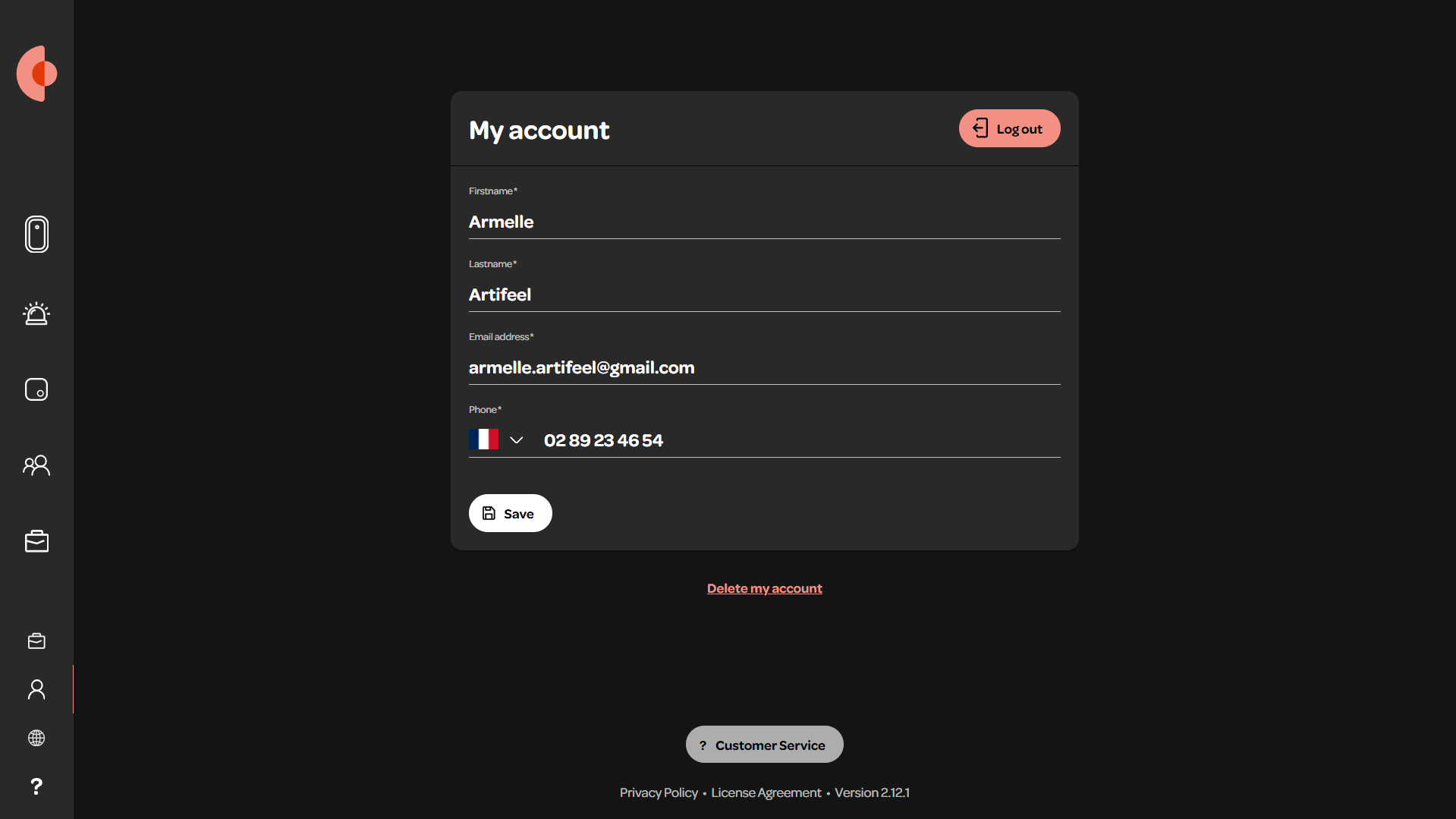
The "My Account" menu allows you to edit your user account information, log out, or permanently delete your account. If needed, you can directly contact our customer service by clicking on the grey button at the bottom of the screen. The Dashboard version is also displayed at the very bottom.
"Change Language" Menu
The "Change Language" menu allows you to switch to the French version of the Dashboard.
"Help Center" Menu
The "Help Center" menu redirects you to our Help Center.
Some Additional Features:
From the Dashboard, you can also: